Intel’s integrated graphics are, well, terrible… for gaming at least. In terms of basic usage on a laptop they do great! Minimal power draw and they workout crashes and other such issues.
But let’s go back to that first point. Gaming, on Intel HD. Is it possible? It depend on who you ask really, the Intel UHD 620 in my laptop has nothing to my GTX 1070-TI, well, except maybe power-draw and stability. Over on userbechmark the 1070-TI in my main system claims a respectable +1,364% performance improvement over the UHD 620.
Ouch, for the UHD 620.. Can we close that gap? Well, let’s see. This first blog post is for the easy stuff that you can do to max out the performance for your Intel integrated graphics. For free, that means no adding another stick of ram (although if you have the money this is an easy recommendation, the difference CAN be seen and felt even)
Ok! Enough chitter chatter. What can you do to maximize the FPS (frames per second) from your Intel integrated graphics? Spoiler: Easily stuff? Not a whole lot.
- Plug your AC adapter in! Really, if you have a laptop please plug it into the charger because when it is unplugged it will almost always throttle your performance back to help save on battery life.
- Update your graphics drivers to the latest version.
- Usually the latest version of graphics drivers will be the fastest, save some errors or issues that may get missed so you should keep them up-to-date!
- The drivers that shipped with your device may have slower performance so the manufacture can boast better battery life, which is great if you like that kind of thing, but not great if you’re looking to get the most out of your device. Check out this video to learn how to fix this issue
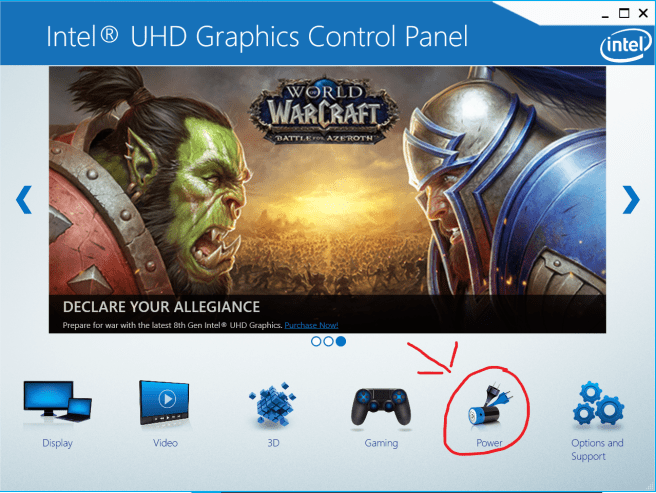
- Set your drivers & computer to high performance mode.
- This will ensure your device uses maximum performance at the cost of battery life and power consumption
- You can set windows 10 into it’s ultimate performance mode to help gain more FPS. Pictures below show how to set Intel HD into maximum performance.


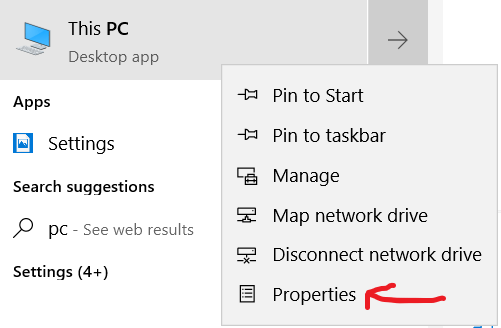
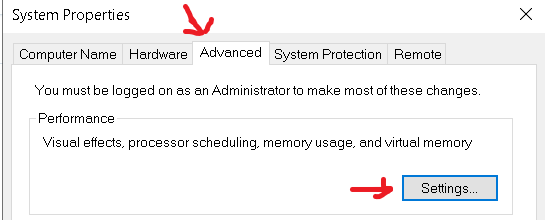
- Dumb down windows’s graphics.
- Step 1, search “pc” and then right click, properties. Then set it to maximum performance

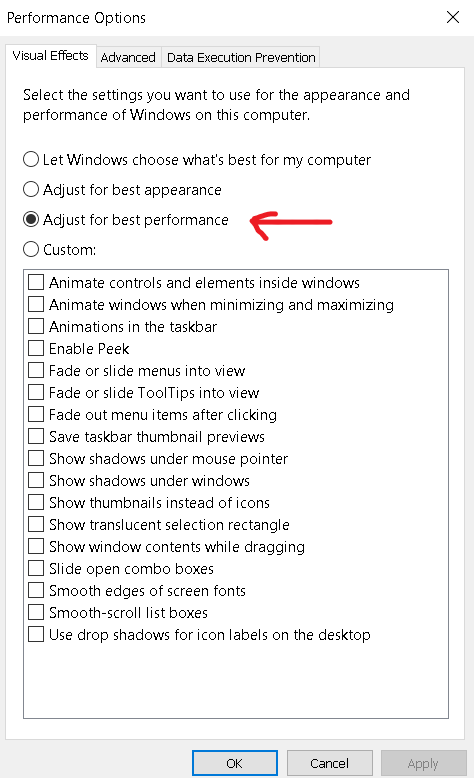
That’s the easiest you can change! It’s not too hard to perform these changes but it should really help you push those pixels and play more games! There are other tweaks you can do as well such as doing a fresh install of windows and removing unneeded apps, games, and programs from your system as well as cleaning it of viruses. Either way, I hope these changes helped you out! Feel free to post any other tweaks and changes you know to get the most out of your integrated graphics!

 Ben Does Tech